
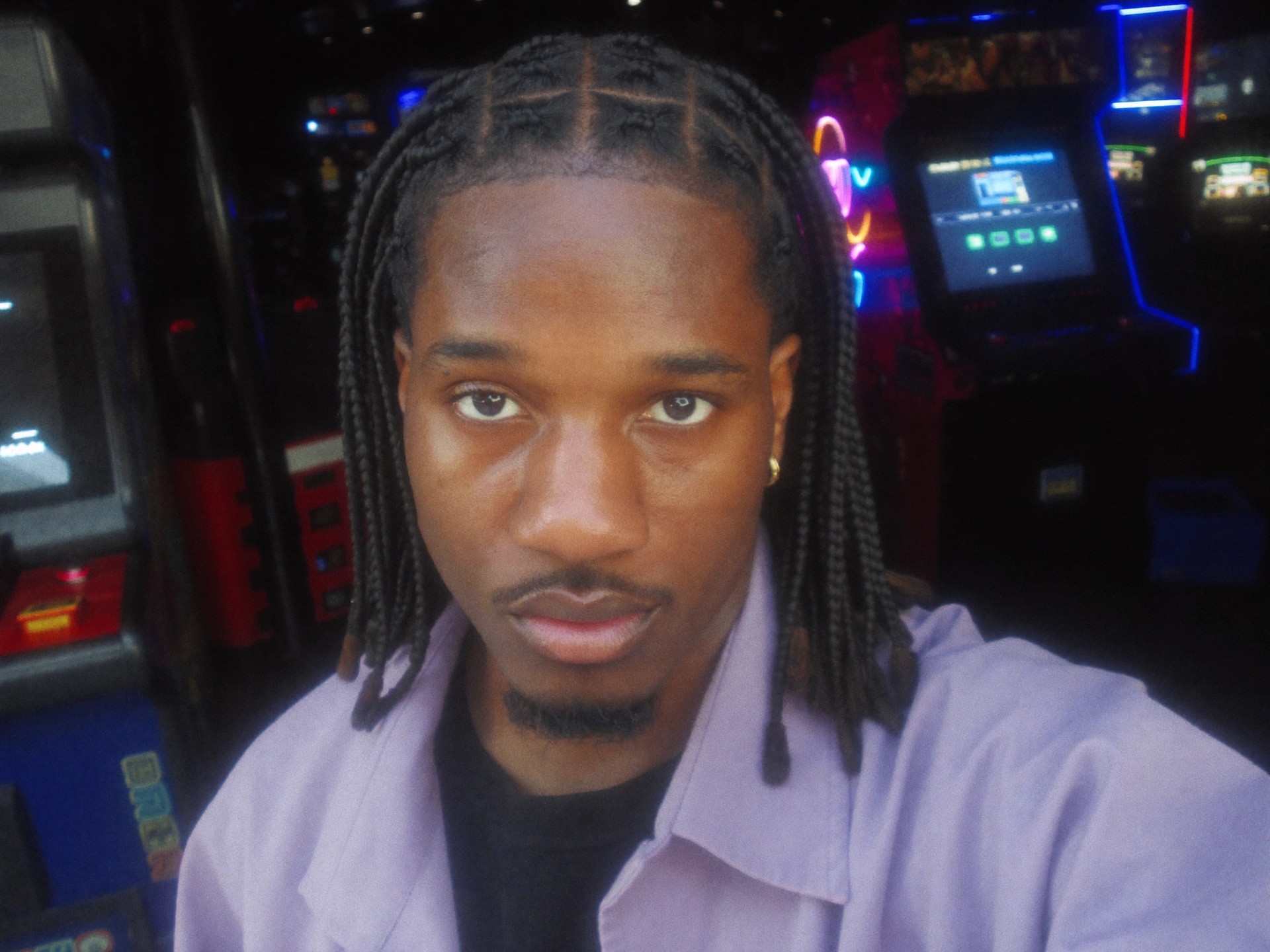


Before
After
Recreate a video with your own people, pets, or products. Genjutsu AI brings motion transfer and object swap into one workspace—pick a preset or upload your clip.
Creations from this workspace appear here.
Find your next video idea. Choose a ready-made trend and make it your own.
Genjutsu AI Video Generator helps you make a new version of a video you like. Use motion transfer to recast a performance, or object swap to feature a different product or prop. The clip guides the action; your photos guide the changes. Start from a Genjutsu AI preset or your own reference, then review the setup before generating.
Pick a video. Add your photos. Create your version.
Step 1
Browse Genjutsu AI examples and choose Use this, or upload your own reference clip. Preview the whole scene and check which roles you can replace.
Step 2
Replace the example images with clear photos of your cast or objects. Follow the numbered roles in your Genjutsu AI preset, then review the model and Settings.
Step 3
Check the credit estimate, sign in, and generate. Review your Genjutsu AI video in My creations before downloading. Keep the setup and try another photo to compare a different cast.
Choose the change you want to make with Genjutsu AI. These community examples illustrate creative directions, rather than results generated on this site.
Recast every move
01
Give a dance, gesture, or short performance a new cast. Genjutsu AI uses a video reference so you can show the action instead of describing every movement. Duet and crowd presets identify each photo role; a pet preset provides a starting point for a different star. Check the new face and moving limbs throughout the clip.
02
Bring your product, vehicle, or prop into an existing scene. In Genjutsu AI, choose a matching preset or a video-edit setup with replacement photos and a custom prompt. Object swap lets you explore another visual direction while using the clip as a reference. Review product shapes and labels carefully; exact reproduction is not guaranteed.
03
Explore character changes, pet performances, and cinematic scenes without building every setup from scratch. Each community preset combines a clip with starting references and instructions. Adapt a Genjutsu AI preset with your photos, keep its prompt or describe a variation, and compare the estimate before making another version.
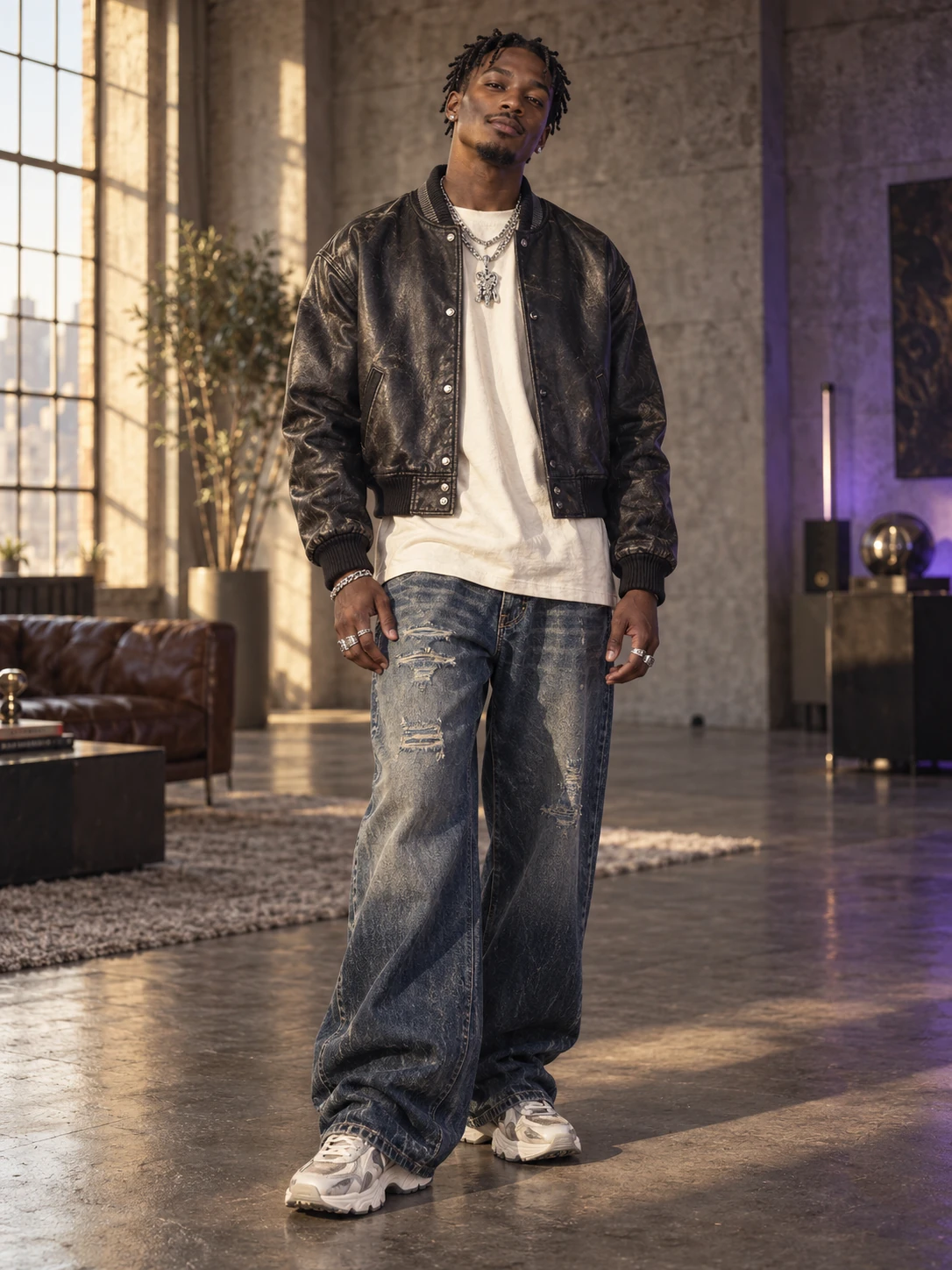
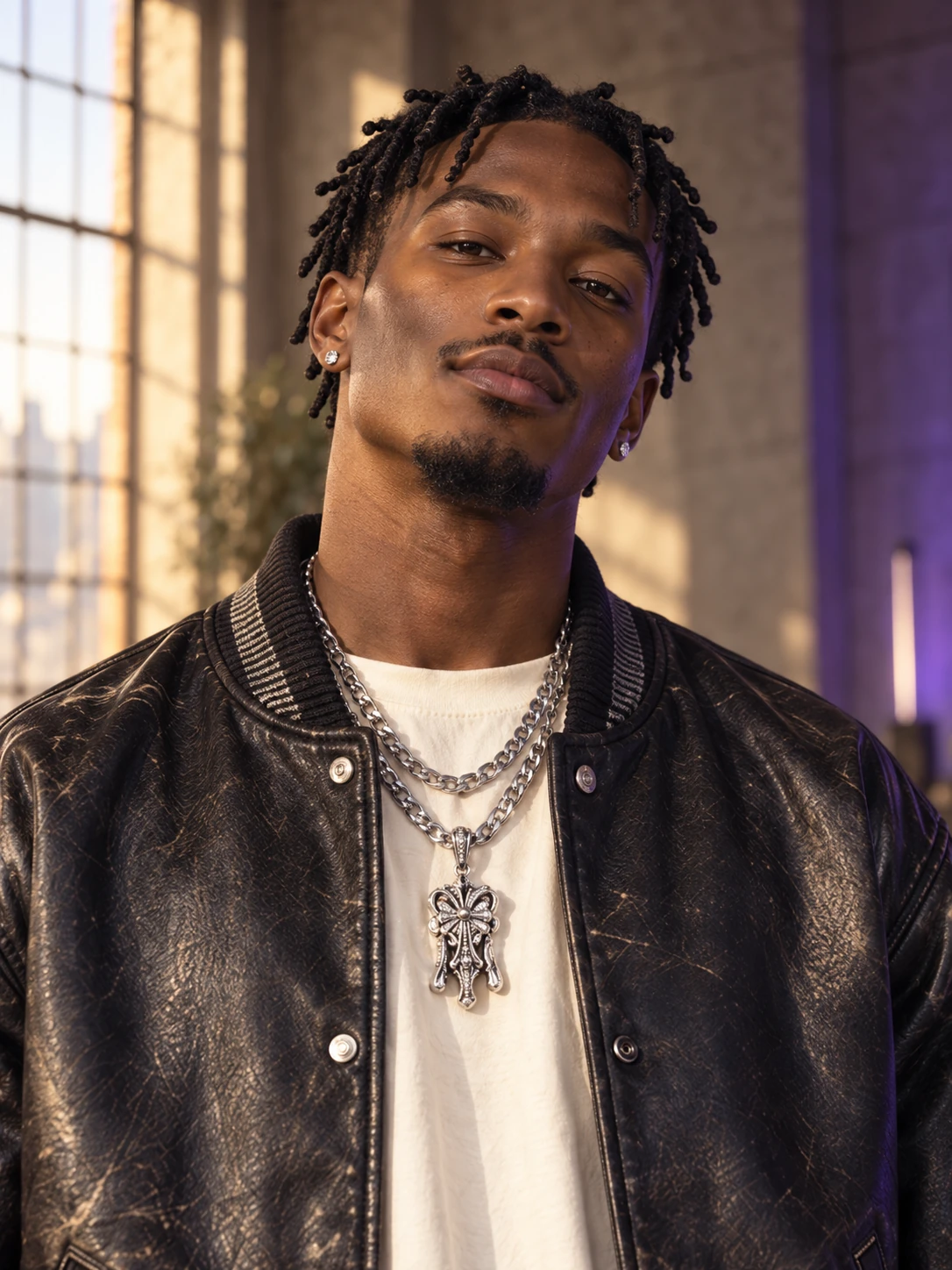
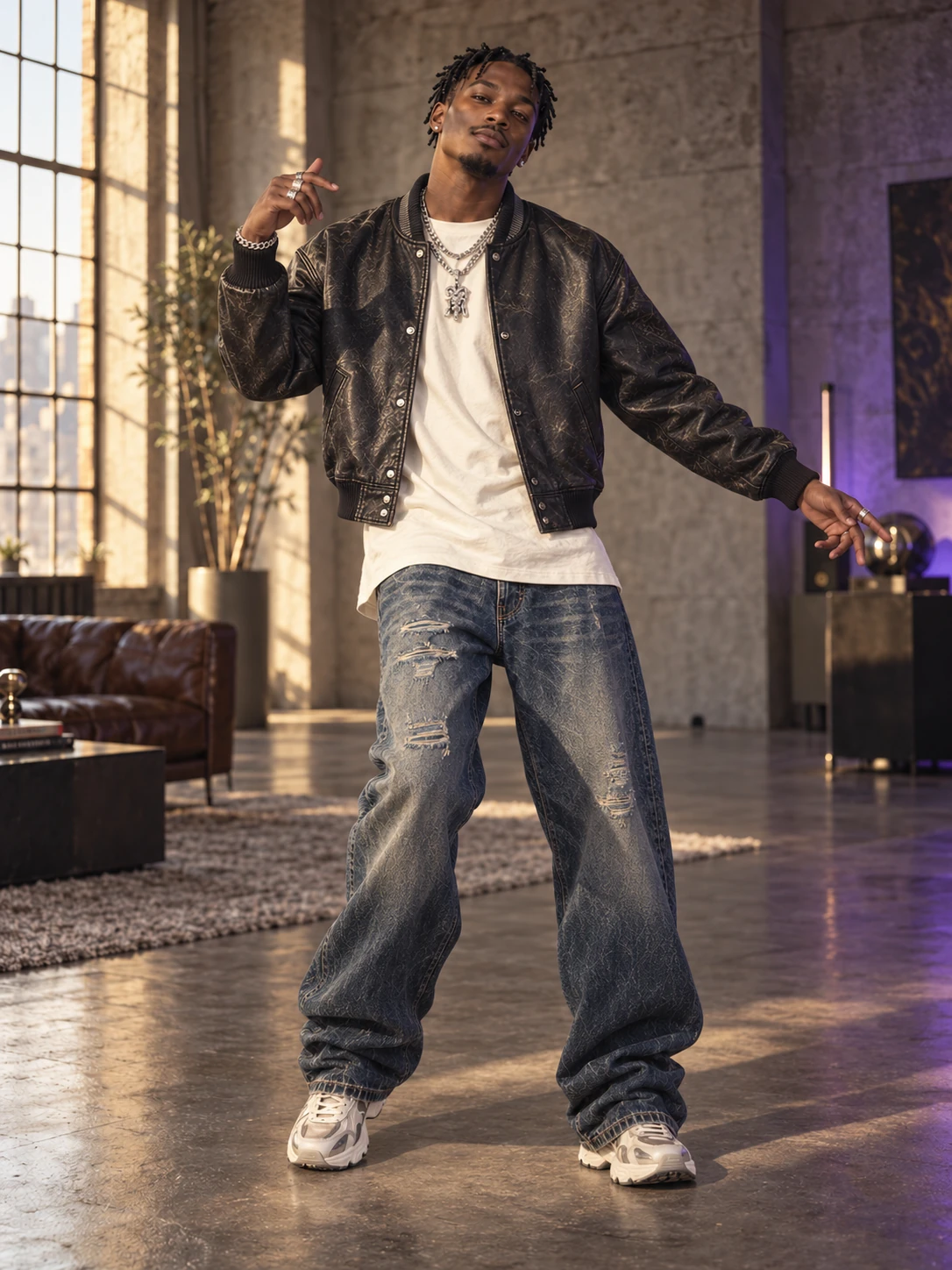
Use these paired examples to check framing and subject visibility before uploading. They illustrate how to choose your source files.
For full-body action in Genjutsu AI, include the head, hands, and feet with room around the limbs. A closer crop suits a small gesture only when all moving parts stay visible.
Recommended
Avoid
For one-person motion transfer in Genjutsu AI, choose a continuous shot with a clearly visible subject. People crossing in front or objects covering the body make the action harder to follow.
Recommended
Avoid
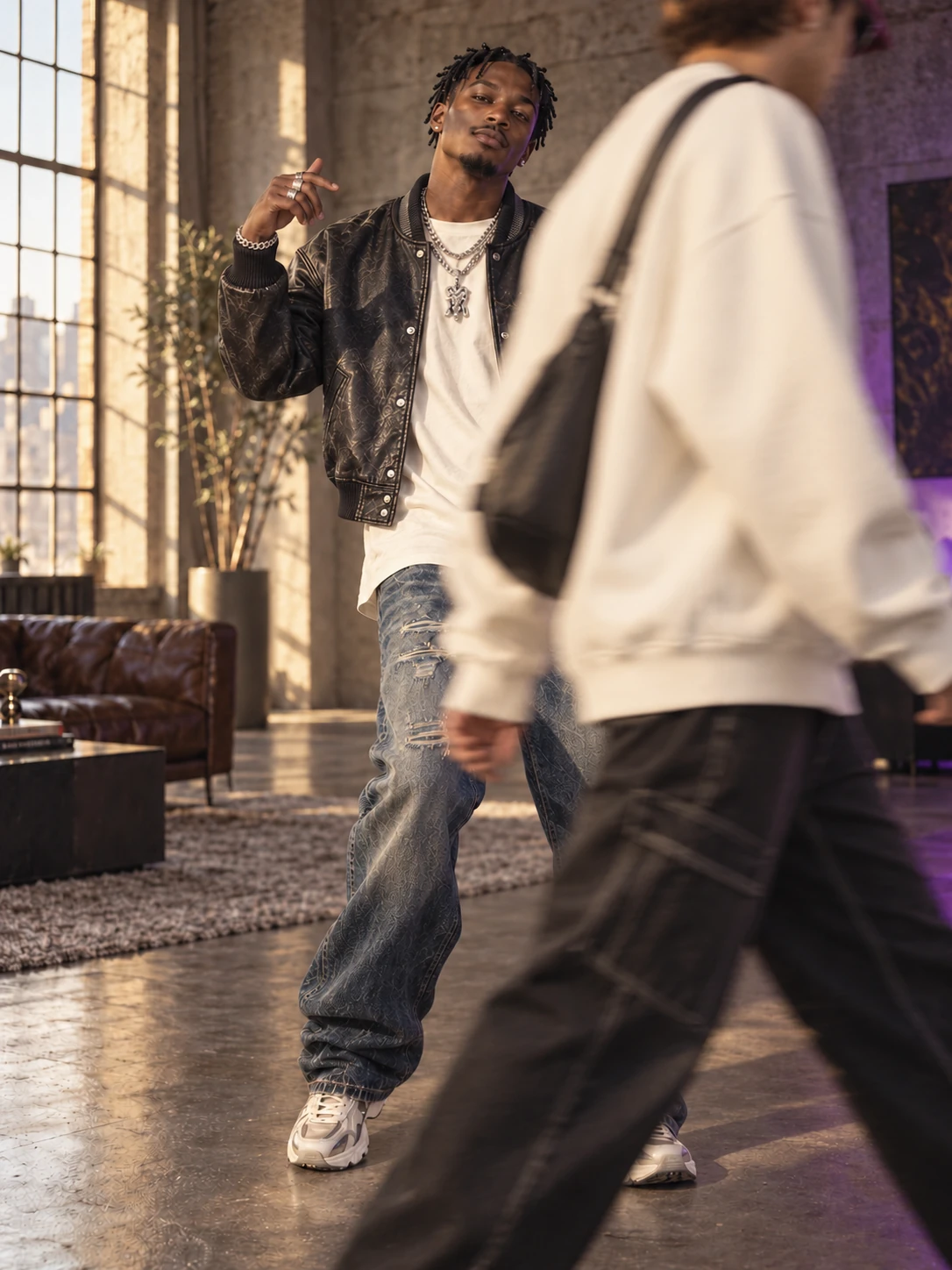
Watch the whole reference before uploading. Trim unrelated shots and avoid sections where motion is heavily blurred or hidden. A clearer take can give Genjutsu AI a more useful starting point.
Have a scene in mind? Bring it to Genjutsu AI with photos of what you want to feature. Keep the reference focused on the moment that matters.
Need an idea? Genjutsu AI presets cover different casts, performances, and scene edits. Dedicated trend pages show their photo roles and load a prepared setup. Choose a duet for two performers, a pet template for an animal, or a vehicle scene for a stunt. You can preview the idea before deciding to generate.
Match your Genjutsu AI setup to the change you want. Check the required photos before selecting a preset or uploading a clip.
| Your idea | What you can change | What to bring |
|---|---|---|
| A new cast | Put yourself or a character into a performance | A reference video and clear character photos |
| A pet performance | Give a dance or playful moment a different star | A suitable motion reference and a photo of your pet |
| A product variation | Feature a different object, outfit, or vehicle | A source clip and photos of the replacement |
| A different setting | Explore a new location or visual style | A reference video and images that show the look you want |
| Your own remix | Combine characters, objects, and a scene | A clip, a photo for each role, and a short description of the changes |
One credit balance for images, videos and motion transfer.
For your first ideas.
$100.0 charged yearly
2,400 credits/year
Up to 400 images
Up to 240 videos
For a steady creative flow.
$360.0 charged yearly
21,600 credits/year
Up to 3,600 images
Up to 2,160 videos
For more creations, more often.
$599.0 charged yearly
48,000 credits/year
Up to 8,000 images
Up to 4,800 videos
Try before you subscribe
Prices in USD; taxes and total shown at checkout. Subscriptions renew automatically; cancel in Billing settings. Subscription credits expire each period; one-time credits never expire. Refund requests: within 72 hours. Eligible refunds deduct used purchased credits and, where permitted, actual non-returned processing fees. Processing fees are capped at 6% of the original purchase amount, excluding separately charged taxes. Terms · Refund Policy.
Quick answers about Genjutsu AI presets, uploads, results, and credits.
Yes. Add your clip to Genjutsu AI Video Generator, choose a compatible model, and upload photos of the people or objects you want to feature. Describe your changes if the setup supports a prompt. A short, readable scene gives the model a clearer reference than unrelated clips joined together.
Choose Use this to load the reference and starting setup. Community presets can include example images and a prompt; replace those images while preserving their numbered roles. Selecting a preset does not start a generation. Genjutsu AI also offers classic motion templates that load a clip and keep your photo.
Use Genjutsu AI to explore a different vehicle, prop, product, or outfit in a reference scene. Choose a suitable preset or the video-edit setup, then add clear replacement photos and describe the target. Object swap can also affect reflections, labels, edges, and surrounding details; inspect the whole result.
Match your framing to the performance. For full-body action in Genjutsu AI, show the head, hands, and feet; for a small facial gesture, a closer image may work. Motion transfer needs enough visual information for the moving body parts. A sharp face alone gives little guidance for a dance.
The selected model determines formats, duration, and reference limits. The default Seedance 2.5 Edit setup accepts a 4–30-second reference video. Other models have different limits; Kling Match photo supports up to 10 seconds, while Match video supports up to 30. Check the upload hints in Genjutsu AI before preparing your files.
Start with the prepared model for a Genjutsu AI preset. Kling and Wan offer one-photo motion workflows; Seedance setups support multiple references for character and scene edits. Available controls change with the model. Review the resolution, audio settings, and credit estimate after switching instead of assuming every model works the same way.
A community preset supplies its own starting prompt. Keep it for the example idea, or enable Custom prompt in Settings to describe a variation. For object swap, identify what should change and which reference depicts the replacement. Genjutsu AI shows the prompt controls supported by your selected model.
New accounts receive 18 starting credits, with up to 60 more across a weekly check-in reward cycle. These are separate grants. Genjutsu AI generation costs vary by model, duration, and settings, so free credits may not cover your chosen preset. Check the estimate before submitting; paid plans are shown in Pricing.
No. Genjutsu AI generates a new interpretation of your references. Faces, hands, clothing, objects, and backgrounds can change during movement. Compare the full clip with your source before sharing. If a limb disappears or a face drifts, try a clearer photo or simpler action and change one input at a time.
Finished results appear in My creations. Play the clip, check the moving subjects, and use the download control for the version you want to keep. Signed-in users can reopen available results through their history. Genjutsu AI previews help you compare attempts before choosing a final video.
Use media you have permission to use and people you are authorized to depict. Creating a video with Genjutsu AI does not grant rights to a face, performance, character, product design, or soundtrack. Review the Use Policy and the permissions relevant to your intended use before submitting or sharing.
AI Genjutsu is an independent service and is not affiliated with Higgsfield. If you are comparing Genjutsu AI Video Generator with Higgsfield Genjutsu, look at the presets, supported inputs, settings, and results relevant to your idea. The services have different models and controls; matching a scene concept does not guarantee matching output.
Choose your starting scene in Genjutsu AI, add your references, and preview the setup before you generate.